
Meta Business Manager lets you give a third party — an agency or a freelancer — access to your pages, ad accounts and pixel without handing over your login. It's the safe way to do it, and it's the way we ask every client to do it.
It's also confusing the first time, because there are several places someone could be added and only one of them is right.
Before you start: you'll need the partner's Business ID. Ask them for it. Ours is in the onboarding email; if you're not a client, your agency will have theirs to hand.
A note on the screenshots below. They were captured on an earlier version of Business Manager. Meta has redesigned this area since, so the buttons may sit somewhere different from what you see here. The sequence and the decisions are the same — where a label has moved, look for the same words rather than the same position.
1. Log in to Business Manager
Go to business.facebook.com and sign in with your personal Facebook credentials. Meta discourages separate "business" logins, and using your own account keeps you as the owner of record. If you don't have a Business Account yet, create one first — it takes about two minutes.
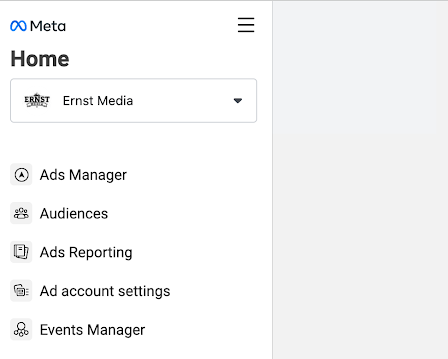
Pick the right business from the drop-down at the top left, then open Business Settings (the gear, bottom left). Complete two-factor if prompted.
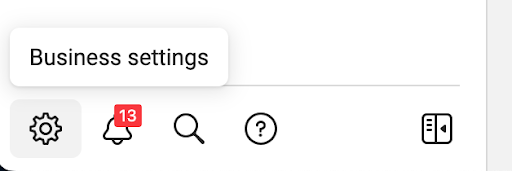
Business Settings is where every permission lives.
2. Add a partner
In the left menu, open Users → Partners. Click the blue Add button and choose Give a partner access to your assets.
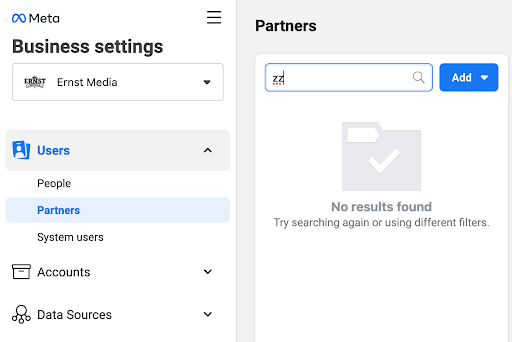
The Partners screen, not People. Adding an agency as a "person" is the most common mistake, and it's the reason this guide exists. People are individuals inside your own business. Partners are other businesses. An agency is a business.
Paste the Business ID you collected earlier.
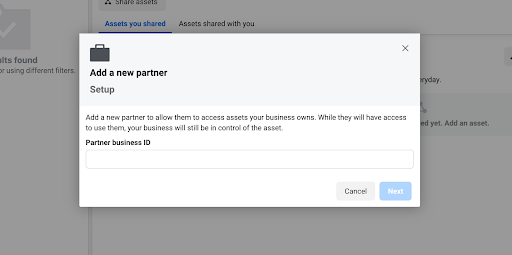
3. Choose the assets to share
The next screen lists your asset types down the left: pages, ad accounts, pixels, catalogs, Instagram accounts. Select each type, then tick the specific assets in the middle column. You can share several at once.
For pixels, Meta asks a couple of extra acknowledgment questions. Answer them; it's a formality.
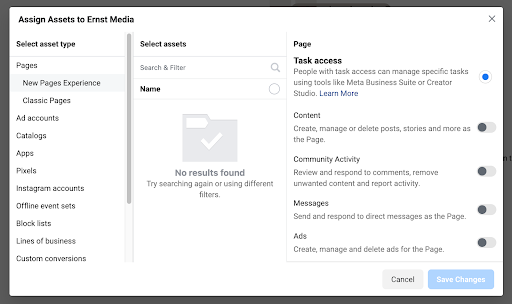
4. Set the access level
On the right, choose the permission level for each asset. An agency running your ads needs full control on the ad account and manage on the pixel. Anything less and they'll be back asking for more access within the week. Click Save changes.
Why this matters: partner access means you stay the owner of every asset. If you ever change agencies, you remove the partner and everything stays with you — the page, the ad account, the pixel and every bit of history attached to them. That is the whole reason we ask for it this way rather than a login.
Handing over a login does the opposite. It works right up until the relationship ends, and then you are negotiating for access to your own advertising account.
5. The video walkthrough
Same steps, in case you'd rather watch than read.
Done. If you're working with us, reply to the onboarding email once it's saved and we'll confirm access from our side within the day.
Once you're set up, our list of social media tips for small businesses is the natural next read, and our paid social service explains how we run these accounts.

Co-founder. Runs every first conversation himself, then stays on the account.